Dual SIM Devices: How to Use eSIM and Physical SIM Simultaneously
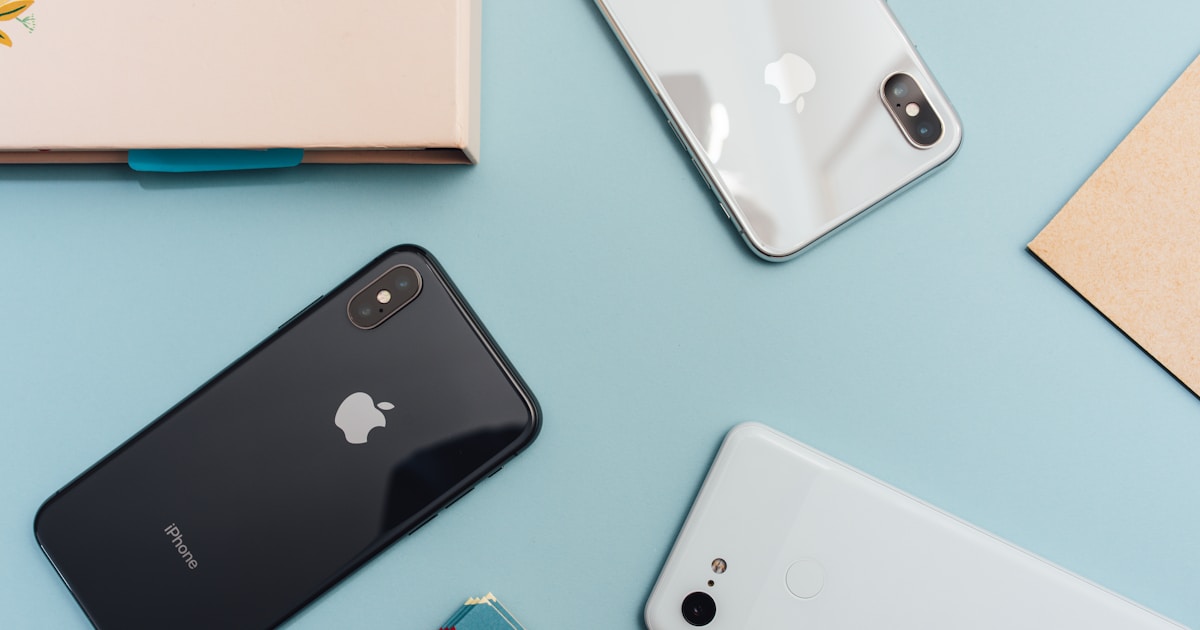
Modern smartphones increasingly support dual SIM functionality, allowing you to use both an eSIM and a physical SIM card simultaneously on a single device. This dual SIM dual standby (DSDS) capability provides greater flexibility for managing personal and business lines, international travel, and carrier options. Understanding how to set up and use both SIM types effectively can significantly enhance your mobile connectivity experience.
Understanding Dual SIM Dual Standby
Dual SIM Dual Standby (DSDS) technology enables a device to maintain two active SIM connections simultaneously. Both SIMs remain connected to their respective networks, allowing you to receive calls and messages on either number. However, only one SIM can be used for cellular data at a time, though you can switch between them as needed.
The combination of eSIM and physical SIM offers the best of both worlds. Your physical SIM typically serves as your primary number, while the eSIM can be used for travel data plans, secondary business lines, or temporary carrier options. This setup eliminates the need to carry multiple devices while providing maximum connectivity flexibility.
Device Compatibility
Not all devices support dual SIM functionality with eSIM. Before setting up, verify that your device supports both eSIM and physical SIM simultaneously. Most modern flagship smartphones from major manufacturers offer this capability, including:
- iPhone XS and newer models (excluding some regional variants)
- Samsung Galaxy S20 series and newer
- Google Pixel 3 and newer
- Xiaomi 13 series and newer
- Motorola Razr and Edge series
To check if your device supports eSIM, dial *#06# on your phone. If an EID (Embedded Identity Document) number appears, your device supports eSIM technology. You can also verify dual SIM support in your device settings or consult the manufacturer's specifications.
Setting Up Dual SIM Configuration
Setting up dual SIM with eSIM and physical SIM involves several straightforward steps. The process varies slightly between iOS and Android devices, but the general principles remain consistent.
Step 1: Insert Your Physical SIM Card
Begin by inserting your physical SIM card into the device's SIM tray. Ensure the SIM card is properly seated and the device recognizes it. You should see the carrier name and signal strength indicator appear in your device's status bar.
Step 2: Activate Your eSIM
Obtain your eSIM activation QR code or activation details from your eSIM provider. Navigate to your device's cellular or mobile network settings. On iOS, go to Settings > Cellular > Add Cellular Plan. On Android, the path varies by manufacturer but is typically found in Settings > Network & internet > SIMs or Settings > Connections > SIM card manager.
Scan the QR code or enter the activation code manually. Follow the on-screen prompts to complete the eSIM installation. Once activated, your device will display both SIM connections in the settings menu.
Step 3: Configure SIM Labels and Defaults
Assign meaningful labels to each SIM to easily distinguish between them. Common labels include "Personal" and "Work," "Home" and "Travel," or "Primary" and "Secondary." These labels appear in your contacts, call logs, and messaging apps, making it clear which number you're using.
Set default preferences for voice calls, messaging, and cellular data. You can choose which SIM to use as your primary line for making calls and sending messages. For cellular data, select the SIM that offers the best data plan or coverage for your current needs. Remember that only one SIM can provide cellular data at a time, but you can switch between them manually when needed.
Managing Dual SIM Usage
Effective dual SIM management requires understanding how calls, messages, and data work with two active connections. Both SIMs remain active and can receive calls simultaneously, but certain limitations apply to outgoing communications and data usage.
Making Calls and Sending Messages
When making calls or sending messages, you can choose which SIM to use on a per-call or per-message basis. Most devices allow you to select the SIM before dialing or composing a message. You can also set a default SIM for all outgoing communications, then override it when needed.
Incoming calls and messages will ring or notify you regardless of which SIM receives them. Your device will indicate which SIM received the communication, helping you respond appropriately based on the number used.
Cellular Data Management
Only one SIM can provide cellular data at a time. This is an important consideration when setting up your dual SIM configuration. If you're using your physical SIM for your primary number and eSIM for travel data, you'll need to switch the data connection when traveling.
Some devices offer smart switching features that automatically use the SIM with better signal strength or allow data switching during calls. Check your device settings to enable these features if available. Monitor data usage for both SIMs to avoid unexpected charges, especially when using international eSIM plans.
Benefits of Dual SIM Setup
Using both eSIM and physical SIM simultaneously provides numerous advantages for different user scenarios:
- Work and Personal Separation: Maintain separate numbers for professional and personal communications without carrying multiple devices
- International Travel Convenience: Use eSIM for local data plans while keeping your physical SIM active for receiving important calls and messages from home
- Carrier Flexibility: Take advantage of different carrier plans and promotions without committing to a single provider
- Cost Optimization: Use the most cost-effective SIM for data while maintaining your primary number on the other SIM
- Backup Connectivity: If one carrier experiences issues, you can quickly switch to the other SIM for continued connectivity
Important Considerations
While dual SIM functionality offers significant benefits, there are several important factors to consider:
- Device Unlock Status: To use SIMs from different carriers, your device must be unlocked. Carrier-locked devices may restrict dual SIM functionality to the same carrier
- Battery Consumption: Maintaining two active network connections can increase battery usage. Monitor your device's battery performance and adjust settings if needed
- Carrier Support: Verify that both carriers support the features you need, such as VoLTE or Wi-Fi calling, for optimal dual SIM performance
- Regional Restrictions: Some devices have regional limitations on dual SIM functionality. Check your specific device model's capabilities for your region
- Data Roaming: Be aware of roaming charges when using either SIM internationally. Consider using eSIM travel plans to avoid expensive roaming fees
Best Practices for Dual SIM Management
To maximize the benefits of dual SIM setup, follow these best practices:
- Regularly review and update your default SIM settings based on your current usage patterns
- Monitor data usage for both SIMs to stay within plan limits and avoid overage charges
- Keep both SIMs active and properly configured to ensure you don't miss important calls or messages
- Use clear, descriptive labels for each SIM to avoid confusion when making calls or sending messages
- Test your dual SIM setup before traveling to ensure both connections work properly in your destination
Get Started with eSIM for Dual SIM Setup
Ready to set up dual SIM functionality with eSIM? RoamHoliday offers eSIM plans for over 190 countries and regions, perfect for use as your secondary SIM for travel or business. Activate instantly, switch between plans easily, and enjoy seamless connectivity alongside your physical SIM. Whether you're separating work and personal lines or planning international travel, eSIM makes dual SIM management simple and convenient.
View eSIM Plans